Exploring Ptyxis: The Modern Terminal Taking Over Linux
Ptyxis, a next-generation terminal emulator built with GTK4 and libadwaita, is quickly becoming the default choice for modern Linux distributions like Fedora and the upcoming Ubuntu releases. Designed to blend seamlessly with the GNOME desktop, it offers features tailored for contemporary software development, including robust container support for Podman, Distrobox, and Toolbox. After several months of daily use, I’m sharing the standout capabilities that make Ptyxis a game-changer. Whether you’re a developer or a power user, these highlights will show why this terminal is winning hearts across the community.
Table of Contents
- 1. What is Ptyxis and why is it gaining traction?
- 2. How does the tabs and overview system work in Ptyxis?
- 3. What color scheme options does Ptyxis offer?
- 4. How does Ptyxis handle containers like Podman and Distrobox?
- 5. Can you customize the appearance and behavior of Ptyxis?
- 6. Is Ptyxis suitable for everyday terminal use beyond development?
1. What is Ptyxis and why is it gaining traction?
Ptyxis is a terminal emulator built from the ground up with GTK4 and libadwaita, ensuring it feels like a native part of the GNOME desktop. It’s designed to meet the demands of modern software workflows, especially containerized development. Its seamless integration with tools like Podman, Distrobox, and Toolbox eliminates the need for extra setup. The terminal is rapidly becoming the default for distributions such as Fedora and is slated for upcoming Ubuntu releases. The community appreciates its modern interface, visual tab management, and performance optimizations. For users who want a terminal that looks and behaves cohesively with GNOME, Ptyxis offers a compelling alternative to older emulators like GNOME Terminal or Kitty.
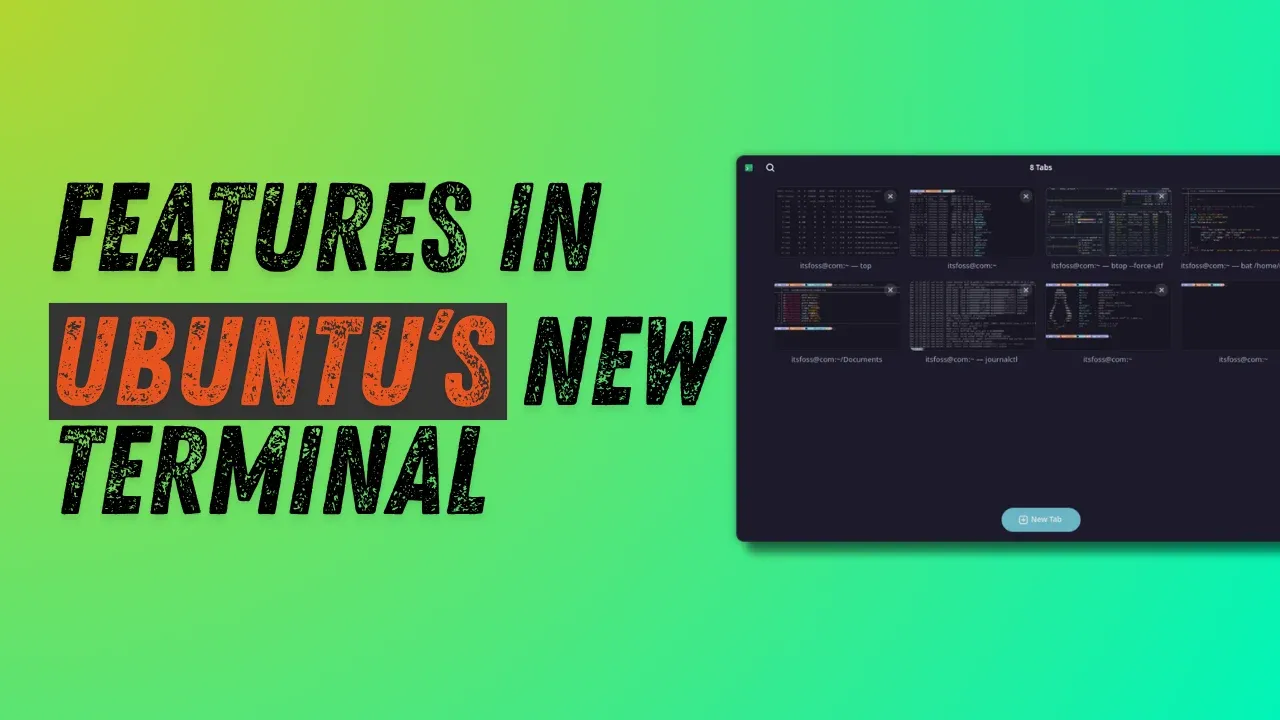
2. How does the tabs and overview system work in Ptyxis?
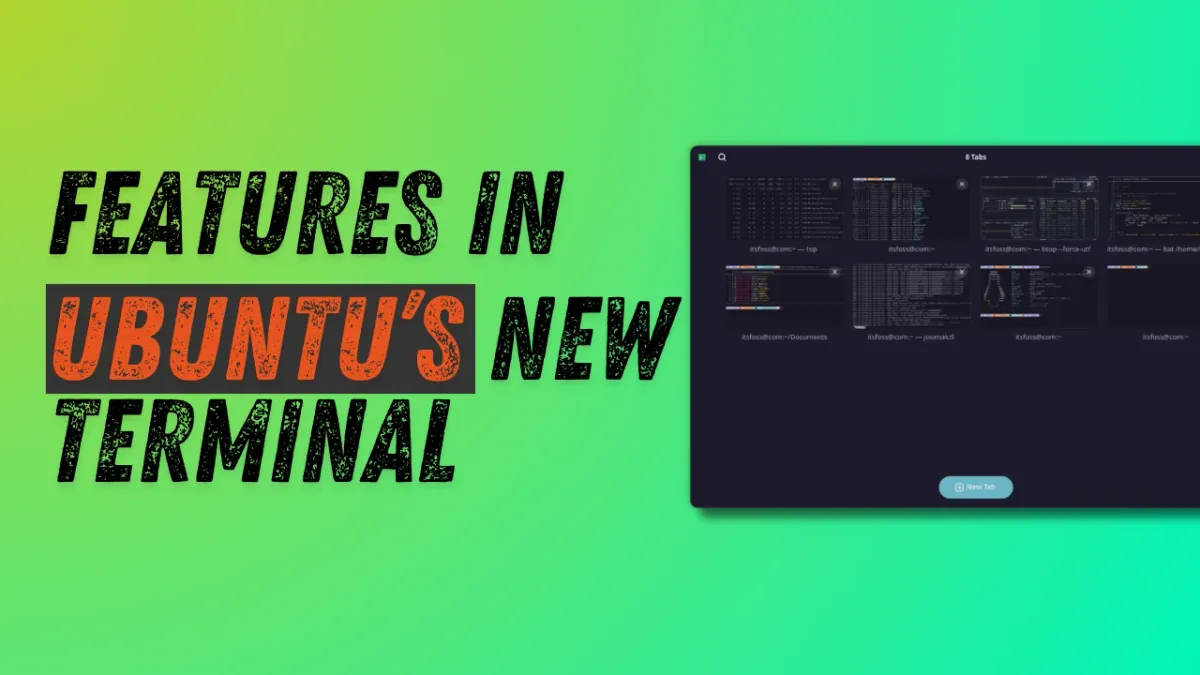
Instead of a traditional tab bar, Ptyxis introduces a visual tab overview reminiscent of the GNOME Activities screen. Click the “Show open tabs” button in the title bar to see each tab with a title and a small preview of its content. You can drag and drop tabs to rearrange them, or pin important tabs to keep them at the top. Right‑click any tab to set a custom title—either as a prefix to the current process or a completely new name. Once named, use the search icon in the title bar to quickly locate a specific tab. This system is invaluable when juggling many sessions, as it provides a clear, searchable overview and makes navigation effortless.
3. What color scheme options does Ptyxis offer?
Ptyxis comes packed with dozens of built-in color schemes. Open Preferences via the three‑dot menu in the title bar, go to the Appearance tab, and click “Show all palettes” to browse the collection. Each scheme displays a preview, and changes are applied instantly without restarting the terminal. You can pick from popular themes like Solarized, Dracula, or Gruvbox, as well as many modern palettes optimized for readability. For power users, custom color profiles can be defined manually. This flexibility lets you tailor the visual experience to your preference or match your IDE’s theme, significantly reducing eye strain during long coding sessions.
4. How does Ptyxis handle containers like Podman and Distrobox?
Container support is arguably Ptyxis’s most innovative feature. It integrates directly with Podman, Distrobox, and Toolbox, allowing you to create, start, or attach to containers directly from the terminal’s interface. When you open a container session, Ptyxis seamlessly maps the environment—including shell, user, and filesystem—without requiring manual configuration commands. The terminal also displays container‑specific metadata (like name and status) in the tab overview, making it easy to switch between development environments. This native integration simplifies workflows for developers who rely on isolated containers for building and testing software, removing the need for additional plugins or scripts.
5. Can you customize the appearance and behavior of Ptyxis?
Yes, Ptyxis offers a variety of customization options. Beyond color schemes, you can adjust font size, font family, cursor shape, and transparency in the Preferences window. The terminal supports profiles, so you can create multiple configurations for different tasks (e.g., one for development with a dark theme and another for server monitoring with a light theme). You can also configure keyboard shortcuts for actions like splitting tabs or opening the overview. While the default layout is clean, advanced users can modify CSS under the hood via style sheets, though this requires a bit more effort. Overall, Ptyxis strikes a balance between out‑of‑the‑box polish and user flexibility.
6. Is Ptyxis suitable for everyday terminal use beyond development?
Absolutely. While Ptyxis shines in development scenarios, its features benefit general-purpose terminal usage as well. The visual tab overview and search make managing multiple sessions—for system monitoring, file operations, or SSH connections—much easier than in traditional emulators. Color schemes improve readability for long command outputs, and the seamless GNOME integration means it respects system themes and window decorations. It also supports typical terminal features like Unicode, tmux integration, and smooth scrolling. Performance is snappy even on modest hardware. For anyone using GNOME, Ptyxis offers a modern, cohesive experience that enhances productivity without adding complexity.