How to Install and Use the Orion for Linux v0.3 Beta: A Complete Guide
Overview
Orion for Linux is a native GTK4/libadwaita web browser built on WebKitGTK, developed by Kagi. The latest beta release (v0.3) introduces a content blocker and a download manager, making it suitable for broader real-world testing. This guide walks you through installing, configuring, and using these new features, while also covering essential aspects like tab management, password storage, history tracking, and focus mode.

The browser aims for parity with its macOS version, though platform-specific features naturally differ. With this update, Kagi claims Orion has “evolved into a much more capable browser.” By the end of this tutorial, you’ll have a fully operational Orion installation and know how to leverage its built-in content blocker and download manager.
Prerequisites
System Requirements
- A Linux distribution (Ubuntu 24.04+ or Fedora 40+ recommended)
- GTK4 and libadwaita runtime libraries installed
- WebKitGTK 2.44+ (check with
pkg-config --modversion webkit2gtk-4.1) - Sufficient disk space (~150 MB for the browser binary)
- Network connection for downloading the beta package
Optional but Recommended
- Familiarity with the terminal for troubleshooting
- An existing browser to download Orion if you don’t have one
Step-by-Step Instructions
1. Download the Beta Package
The Orion Linux beta is distributed as a Flatpak or an AppImage. For this guide, we’ll use the Flatpak version for ease of updates. Visit the official download page and grab the .flatpakref file.
- Open a terminal.
- Run
flatpak install --from /path/to/orion.flatpakref(replace with your actual file path). - If Flatpak is not installed, refer to Flatpak setup instructions.
Alternatively, for the AppImage:
- Download the .AppImage file.
- Make it executable:
chmod +x Orion-*.AppImage. - Run it:
./Orion-*.AppImage.
2. Launch Orion for the First Time
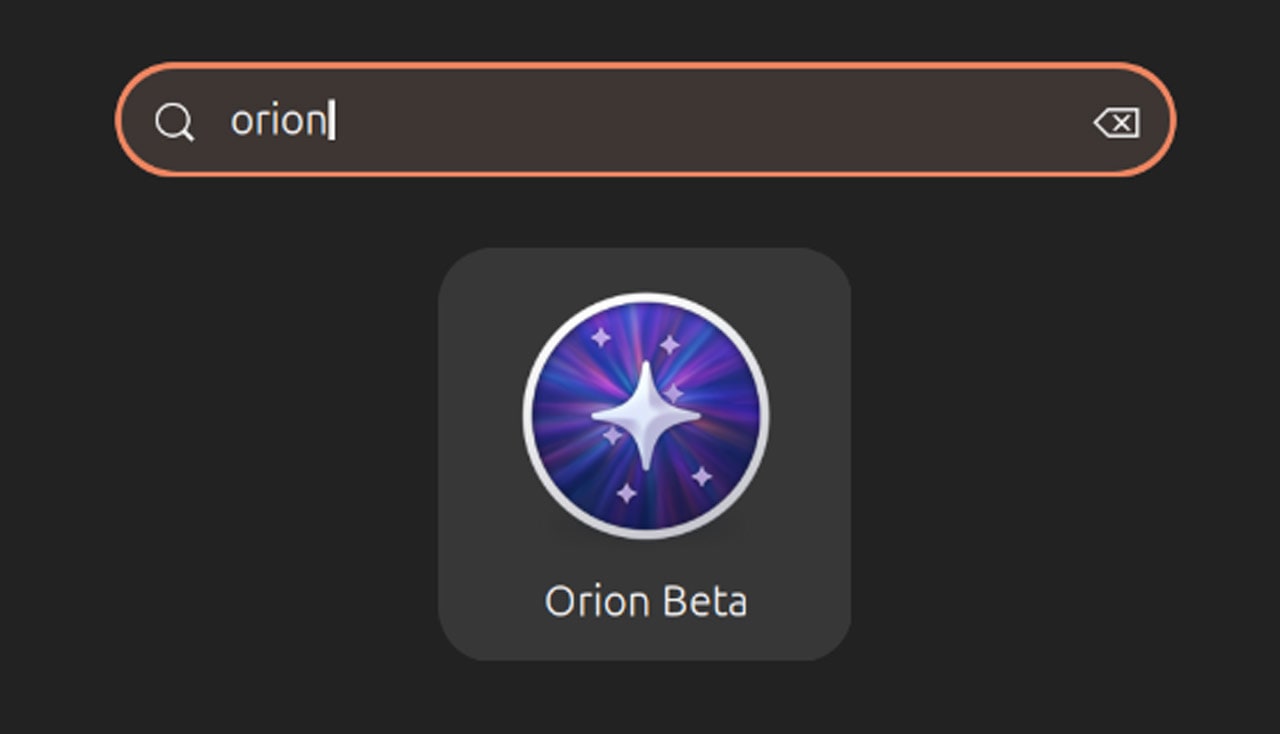
After installation, start Orion from your application menu or by running flatpak run com.kagi.Orion in the terminal (if using Flatpak). The browser opens with a welcome screen. You’ll be prompted to:
- Choose a data directory (default is
~/.var/app/com.kagi.Orion/). - Import bookmarks or settings from another browser (optional).
- Enable or disable telemetry (anonymous usage data).
Once you pass the initial setup, you’ll see a clean interface with tabs, a URL bar, and a menu button (hamburger icon).
3. Enable the Content Blocker
The content blocker in Orion v0.3 blocks ads, trackers, and intrusive scripts. To activate it:
- Click the menu button (three horizontal lines) in the top-right corner.
- Select Settings (or press
Ctrl+,). - Navigate to the Privacy & Security tab.
- Under Content Blocker, toggle “Enable content blocker” to on.
- (Optional) Choose a blocking level: Standard (recommended) or Strict (may break some sites).
- Close Settings. The blocker works immediately on all new tabs.
You can also whitelist specific sites by clicking the shield icon in the address bar and selecting “Disable on this site.”
4. Use the Download Manager
Orion v0.3 introduces a built-in download manager. To download a file:
- Click any downloadable link (e.g., a PDF or image).
- A small progress bar appears at the bottom of the window. Click it to expand the download manager panel.
- From the panel, you can pause, resume, cancel, or open the file.
- To modify download behaviors (e.g., default location), go to Settings → Downloads.
- Set a download directory and choose whether to ask for each download.
The download manager also supports drag-and-drop reordering of active downloads.
5. Explore Other Core Features
Orion includes several features you should test:
- Tab Management: Right-click a tab to pin, mute, or move it. Use
Ctrl+Tabto cycle through tabs. - Password Manager: When you log into a site, Orion offers to save credentials. Access them via Settings → Passwords (requires setting a master password).
- Focus Mode: Press
F11to enter full-screen; useCtrl+Shift+Fto toggle a distraction-free reading view. - History Tracking: Press
Ctrl+Hto view browsing history, which is searchable and can be cleared per time range.
Common Mistakes
Missing Dependencies
Symptom: Orion fails to launch or crashes immediately.
Solution: Ensure GTK4, libadwaita, and WebKitGTK are installed. On Ubuntu, run sudo apt install libgtk-4-1 libadwaita-1-0 libwebkit2gtk-4.1-0. On Fedora, use sudo dnf install gtk4 libadwaita webkit2gtk4.1.
Content Blocker Not Working
Symptom: Ads still appear after enabling the blocker.
Solution: Refresh the page (Ctrl+R) – the blocker applies to new requests. Also check that you haven’t whitelisted the site accidentally. If using Strict mode, try switching to Standard.
Download Manager Not Showing
Symptom: Downloaded files appear but no manager panel.
Solution: Ensure you clicked the progress bar at the bottom – it’s a small area. Alternatively, open Settings → Downloads and ensure “Show download panel” is checked.
Flatpak Not Found
Symptom: Command flatpak not recognized.
Solution: Install Flatpak first: sudo apt install flatpak (Debian/Ubuntu) or sudo dnf install flatpak (Fedora). Then restart your terminal.
Summary
Orion for Linux v0.3 beta brings a content blocker and download manager to a GTK4/libadwaita browser built on WebKitGTK. By following this guide, you have installed the browser, enabled ad blocking, used the download manager, and tested core features. This beta is ready for real-world use, though you may encounter minor bugs. Provide feedback to Kagi to help shape future releases. Enjoy a more private and capable browsing experience on Linux.